

How To Take Full Screenshot Of A Website Page Without Losing Quality

Let me call out a mistake I see in designer portfolios all the time…
You pour your heart and soul into a beautiful website design, spending hours perfecting layouts, spacing, and sections… and then showcase it with one awkward little screenshot that makes your work look way less impressive than it actually is.
Flat. Boring. Zero context.And you wonder why your portfolio isn’t hitting the way it should.
Today I’m showing you a ridiculously simple tool that lets you capture a complete website page from top to bottom in literally seconds, so your portfolio actually looks as good as the work you’re doing behind the scenes.
When you’re building a portfolio, presentation matters almost as much as the design itself. A cropped screenshot only shows a tiny portion of the experience. Clients don’t see the full layout, the structure, the storytelling of the page, or how the sections actually flow together.
And if you’re pitching higher-paying clients, they want proof that you can design complete, professional websites, not just hero sections. That’s where full-page screenshots come in. They instantly make your work feel more real, more complete, and way more impressive when you drop them into mockups later.
So here’s the simple fix: we’re going to use a free browser extension called GoFullPage.
Step 1: Install the extension
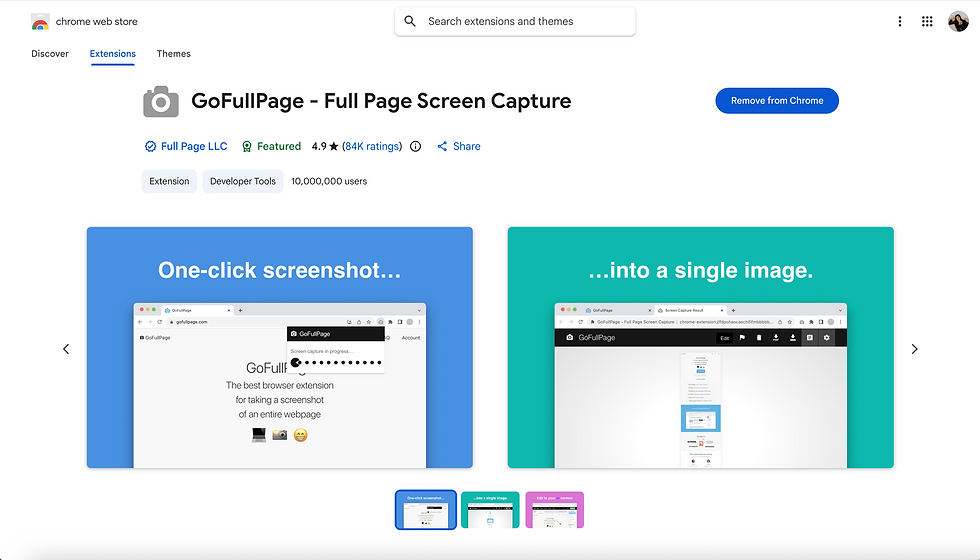
Open either the Chrome Web Store or the Microsoft Edge Add-ons store, search for GoFullPage, and install the free extension.It takes about ten seconds, no complicated setup.
Once installed, you’ll see a small camera icon in your browser toolbar.
Step 2: Capture the page screenshot
Navigate to the url of any webpage you want to screenshot. Click the GoFullPage icon, and the extension will automatically scroll through the entire page, capturing every section from top to bottom.
No piecing multiple screenshots together. No jumping through weird hoops just to get one clean, full-page capture. When it’s done, download the file as a PNG , because we’ll use that image in the next step when we place it into realistic mockups for your portfolio.

Now quick heads up.
If the webpage ends up being suuuper long, sometimes the exported image can lose clarity and end up blurry when you want to highlight a certain section in your final mockup. If that happens, I recommend using the built-in crop tool inside GoFullPage to trim the screenshot before downloading it.
I’ve tested cropping these long screenshots after downloading them in other programs, and honestly, the quality just isn’t as crisp. Cropping inside the extension first gives you a much cleaner, high quality image.
The editing tools are part of the premium version of GoFullPage. If you’re using this regularly for client work or portfolio updates, the $12/year is totally worth it in my opinion. It saves time, avoids quality issues, and removes the headache of trying to “fix it later.”

If you’re just testing things out, the free version works great. But if this becomes part of your workflow, upgrading makes your life way easier.
Step 3: Turn your screenshots into professional mockups
Now here’s where most designers stop… but THIS is the part that actually makes your portfolio stand out from everyone else.
Instead of uploading that screenshot as a plain flat image, drop it into realistic device mockups like laptops, desktops, or mobile screens.
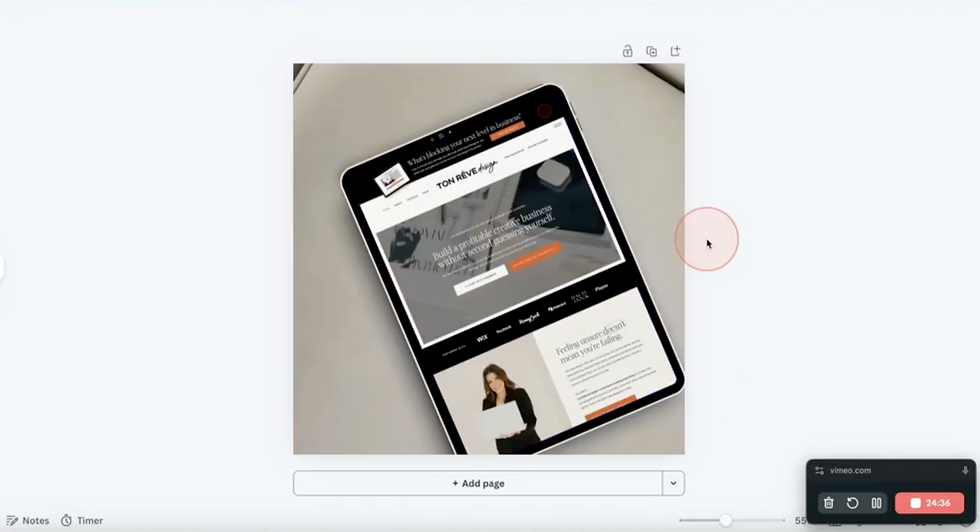
Suddenly your work looks like a real live project instead of a random screenshot floating on a white background.
This small presentation upgrade can make a huge difference in how professional your portfolio looks & feels, especially if you’re still building experience and want your projects to look as impressive as possible.
And in an upcoming tutorial, I’ll walk you step-by-step through how to create custom, professional device mockups so your portfolio actually stands out and makes a statement. Not like the same boring, generic portfolios that most designers have.
Final Thoughts
That’s it for 'How to Take a Full Screenshot of a Website Page'. If you found this helpful, be sure to share this with another designer who needs their portfolio to look ten times more professional without ten times more work.
Subscribe if you’re watching on YouTube, or follow if you’re listening to the podcast so you don’t miss what’s next. And if you want more straight-up, actually useful content like this, make sure you’re on my VIP email list where I go deeper and share things I don’t always say out loud here.
Until next time, stay creative!
.png)

.png)


